- Download and open the disk image. Drag VisualASO to Applications and open it. It is signed and notarized, so macOS opens it after one confirm.
- Add your app. Press ⌘N and search by name, or paste the app's App Store link or ID. With App Store Connect connected, Settings can add every app your key sees.
- Add phrases in English. Type the phrases you think people search, one per line. VisualASO can suggest more from your listing, and write native phrases for each country with your AI tool (Pro).
- Press ⌘R to check. VisualASO reads your rank, demand and difficulty for each phrase in each country. It keeps to Apple's limits on its own, so a first check of a few dozen phrases takes a few minutes.
- Open the Map. Press ⌘2. The shaded corner is the sweet spot: real demand and a top ten your ratings can reach. Hover a dot for the numbers; pick a country to see the dots move.
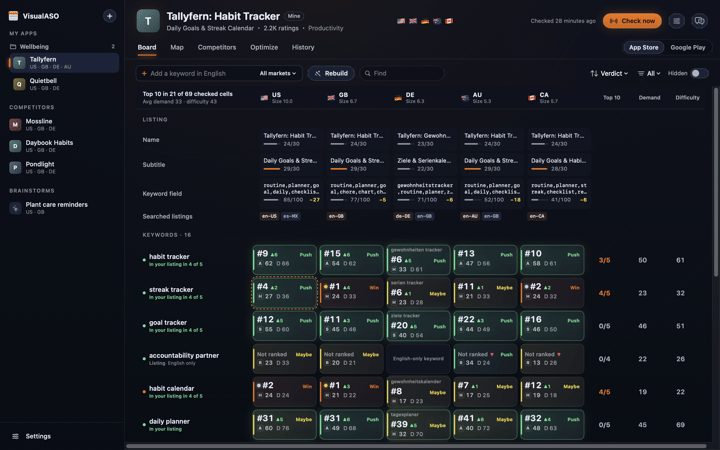
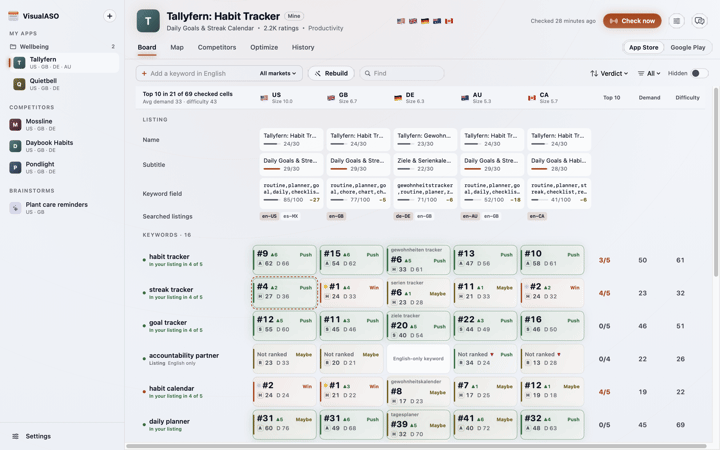
What next
- Connect your AI tool to write listing options and translations.
- Create an App Store Connect API key to read your keyword field and fill new versions.
- Sign in to Apple Ads to add Apple's popularity score to demand.
- Let your agent use VisualASO from Claude Code or Codex.
- Read where the numbers come from before you trust any of them.
Keyboard
| Keys | Does |
|---|---|
| ⌘N | Add an app |
| ⌘1 to ⌘5 | Board, Map, Competitors, Optimize, History |
| ⌘R | Check the current app |
| ⌘⇧R | Check again, ignoring today's saved answers |
| ⌘. | Stop a check |
| ⌘J | Open the Researcher panel |
| ⌥⌘1, ⌥⌘2 | App Store, Google Play |
| Arrows, Return, Escape | Move between cells or dots, open details, close |
Something unclear or out of date? Write to hello@musthaveappscorp.com.