Enter your key
After you buy, the page shows your key and an Open VisualASO button that fills it in. The key also arrives by email. To enter it by hand: open Settings → Licence, paste the key into the field and press Activate.
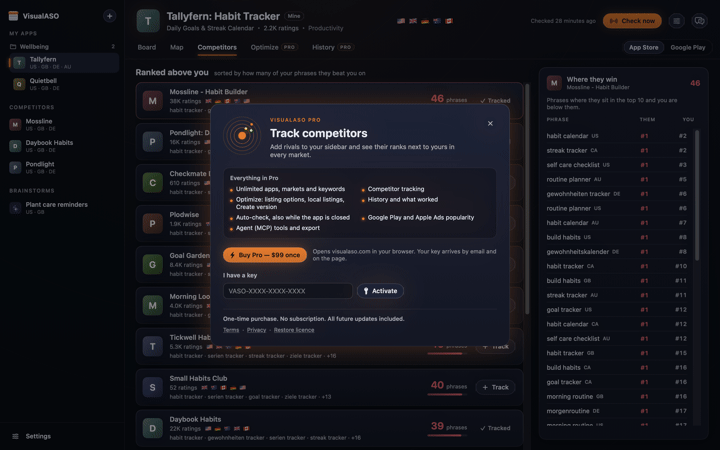
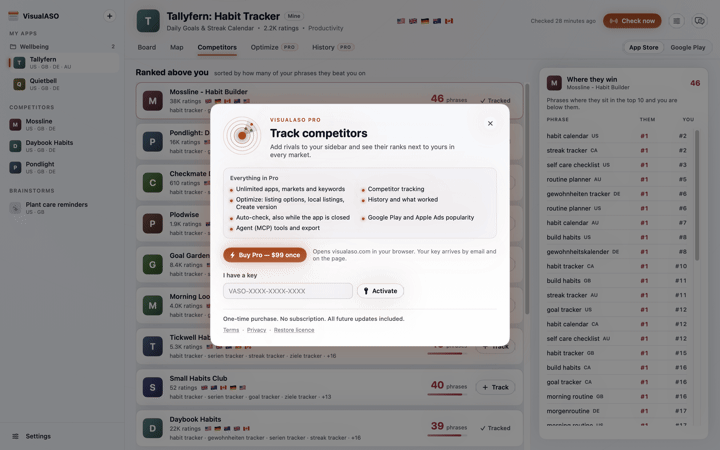
Restore a lost key
Open Restore licence and enter the email you paid with. We email every key bought with that address. The app has the same button: Settings → Licence → Restore licence.
Move to another Mac
A licence works on 3 Macs at once. To move it, open Settings → Licence on the old Mac and press Deactivate this Mac, then enter the key on the new one. If the old Mac is gone, activate on the new Mac: VisualASO lists the Macs using the licence and lets you free one.
Offline
The licence is checked on your Mac, so VisualASO opens and works without a connection. It confirms the licence with our server about once a week. Offline, Pro keeps working for 60 days; after 30 it asks you to go online once.
Still stuck
Write to hello@musthaveappscorp.com with your purchase email. Help → Copy Diagnostics copies the details we need, with no keys in it.
Something unclear or out of date? Write to hello@musthaveappscorp.com.